


Full disk encryption protects the data stored on a Windows 10/11 computer by encrypting an entire drive or volume. BitLocker and Device Encryption are built-in Windows full disk encryption options that can help prevent unauthorized access if a PC or storage drive is lost or stolen. This post shows you how to enable them in Settings and MiniTool Partition Wizard.
Quick Answer
Full disk encryption (FDE) encrypts the data stored on an entire drive so unauthorized users cannot access it without the required encryption key or authentication. In Windows 10/11, users can use BitLocker or Device Encryption to perform full disk encryption, depending on their Windows edition and hardware.
What Is Full Disk Encryption?
Full disk encryption (FDE) is a security technology that encrypts the data stored on an entire hard drive or SSD, which converts readable data into encrypted information.
Hence, data cannot be easily accessed without the correct encryption key or authentication, even if someone removes the drive and connects it to another computer.
Free Windows full disk encryption software is BitLocker or Device Encryption. Besides, macOS uses FileVault, and Linux uses LUKS (Linux Unified Key Setup).
How Does Full Disk Encryption Work?
The working principle of full-disk encryption is as follows.
#1. Encrypt the Drive
When full disk encryption is enabled, the encryption system uses an encryption key plus an encryption algorithm to convert readable data (plaintext) into scrambled, unreadable data (ciphertext). The encrypted data remains protected while the computer is powered off.
#2. An Encryption Key Protects the Data
FDE relies on a cryptographic key to encrypt and decrypt the information stored on the drive. In Windows, the key is called the Full Volume Encryption Key (FVEK) stored in the disk’s metadata sectors. It is protected by the Volume Master Key stored in the TPM.
#3. The Device Verifies You at Startup
When you turn on the computer, the system checks whether the device is in a trusted state and whether the required authentication is available. If authentication succeeds, the system can unlock the encrypted drive.
If Windows detects certain unexpected changes, such as some hardware, firmware, or boot-configuration changes, it may require the BitLocker recovery key before allowing access to the encrypted drive.
#4. Data Is Encrypted or Decrypted Automatically
Once full-disk encryption is enabled, you simply need to save your files as usual, and the encryption process will be handled automatically in the background.
On the other hand, after successful authentication, Windows decrypts data automatically. You can open documents, launch applications, and use Windows normally without manually decrypting files.
#5. Encryption Protects Data When the Device Is Offline
The biggest advantage of FDE is data-at-rest protection.
If someone steals a powered-off laptop and removes its SSD, they may see only encrypted data when connecting the drive to another computer. Without the required encryption key or recovery credentials, the original files should remain inaccessible.
Free + Paid Best Encryption Software to Keep Your Data Safe
To keep your data safe, you should encrypt it with a piece of encryption software. What’s the best encryption software? Here are some recommendations.
Read More
What Does Full Disk Encryption Protect Against?
Full disk encryption protects your data in the following cases.
- Lost or Stolen Computers: Stops strangers from reading your files if they take your computer. The data on the hard drive remains encrypted if the computer is not logged in.
- Offline Physical Attacks: Prevents thieves from pulling out your hard drive or booting another operating system to read your files. They can’t browse the files without unlocking the encrypted volume.
- Disposal and Recycling: Keeps your old data inaccessible for others when you throw away, sell, or recycle a drive.
Full Disk Encryption vs File-Level Encryption vs Hardware-Based Encryption
You may want to know the differences among whole disk encryption, file-based encryption, and hardware-based encryption. Here is a brief comparison table.
| Features | Full Disk Encryption | File-Level Encryption | Hardware-Based Encryption |
| What Is Protected? | Entire disk or volume | Individual files/folders | Data stored on the drive |
| Encryption Performed By | Operating system/software + hardware support | Operating system/application | Storage device controller |
| Performance Impact | Low | A little bit | Very low |
| Protection When PC Is Running | No | Yes | No |
| Protection When PC Is Stolen | Yes | For encrypted files | Yes |
| Typical Examples | BitLocker, FileVault, LUKS | Encrypting File System (EFS), encrypted archives | Self-encrypting drives (SEDs) |
| Best For | Protecting a computer against physical theft, lost devices, and offline attempts to access stored data. | Protecting particularly sensitive documents, folders, or individual pieces of data. | Protecting data against physical theft and loss, as well as offline unauthorized access attempts, without slowing down computer performance. |
Comparing Software vs Hardware Encryption: A Multi-Faceted Analysis
When it comes to encrypting data, two primary methods exist: software and hardware encryption. This post introduces the two in detail.
Read More
How to Enable Full Disk Encryption in Windows 10/11
As mentioned above, the full disk encryption software in Windows is BitLocker or Device Encryption. The main differences between the two are as follows.
| Comparison Options | Device Encryption | BitLocker |
| Windows Editions | All Windows versions, including Windows Home | Windows Pro, Enterprise, and Education |
| Trigger and Activation Methods | Automatically and seamlessly enabled when hardware meets the requirements and a Microsoft Account is signed in. | Requires the user to enable it manually. |
| Hardware Dependency | Requires modern PCs with TPM 1.2/2.0 and UEFI Secure Boot. | Supports older computers without a TPM chip. |
| Management and Control functions | Cannot encrypt non-system drives. | Supports multiple unlocking methods, encryption for portable flash drives, and enterprise domain policy management. |
How to Manually Enable Device Encryption in Windows 11/10
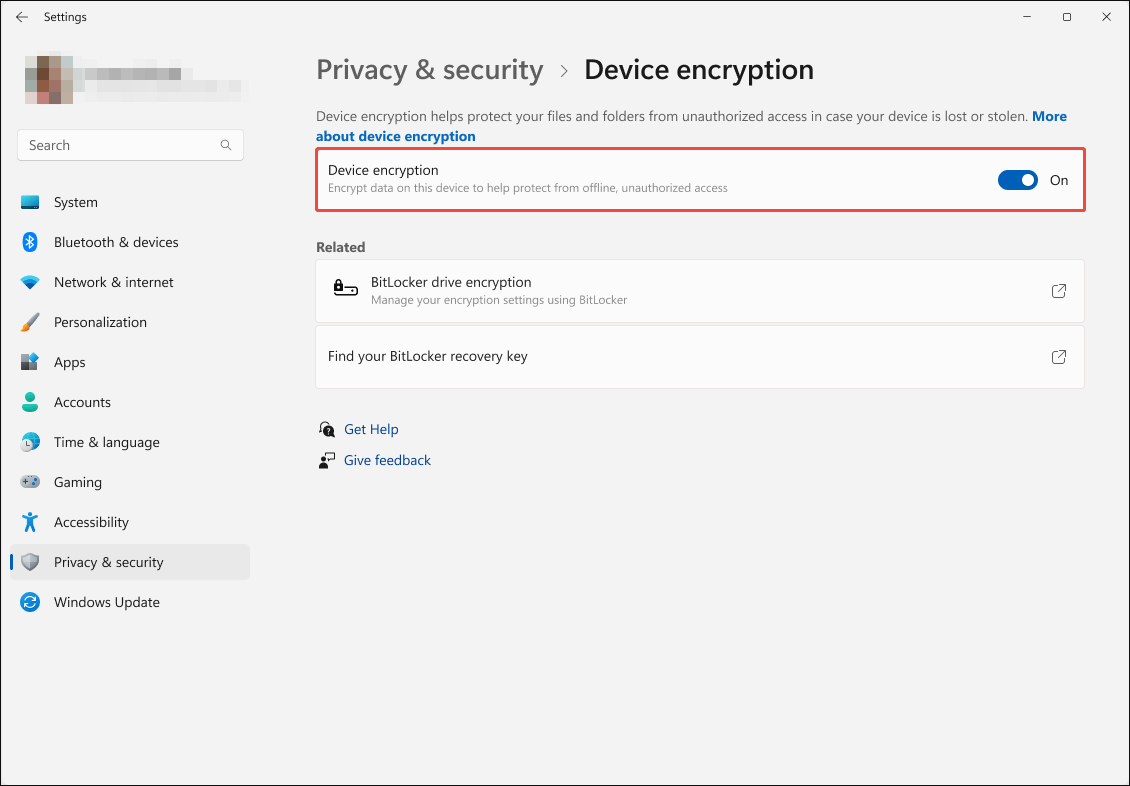
Device Encryption will be enabled in Windows 11/10 by default. If it is not enabled automatically, you can follow the steps below to turn it on:
- Sign in to Windows with an administrator account.
- Press Win + I to open Settings.
- Go to Privacy & security > Device encryption.
- You can turn on Device encryption here.
How to Enable BitLocker Full Disk Encryption in Windows 11/10
To enable BitLocker in Windows, you can use MiniTool Partition Wizard. This free tool can help you not only turn BitLocker on or off, lock or unlock BitLocker, but also manage disks and partitions. For example, move/resize partitions, extend partitions, merge partitions, copy partitions and disks, etc.
MiniTool Partition Wizard FreeClick to Download100%Clean & Safe
Here is how to enable BitLocker using MiniTool Partition Wizard.
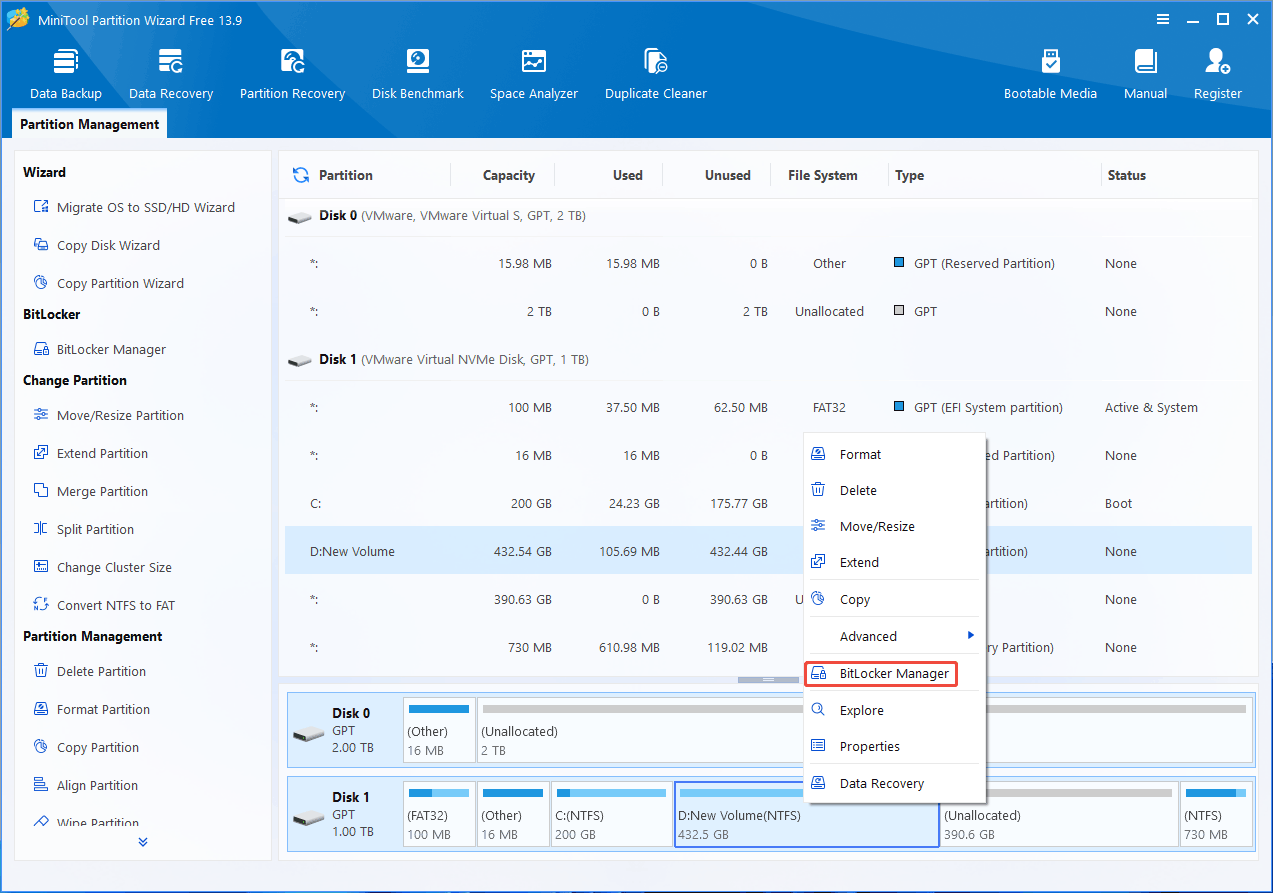
Step 1: Launch MiniTool Partition Wizard. Right-click the partition you want to encrypt and choose BitLocker Manager.
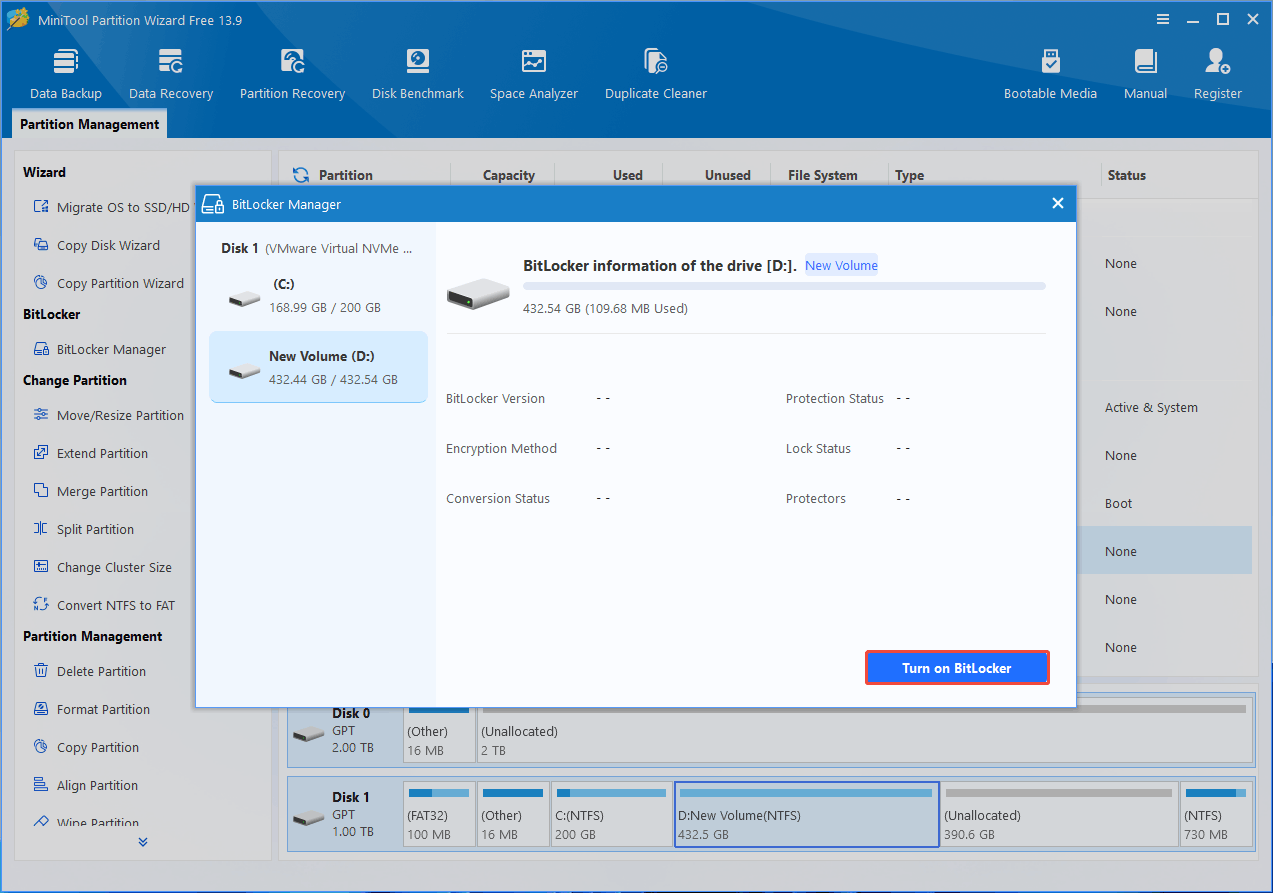
Step 2: On the pop-up BitLocker Manager window, click Turn on BitLocker.
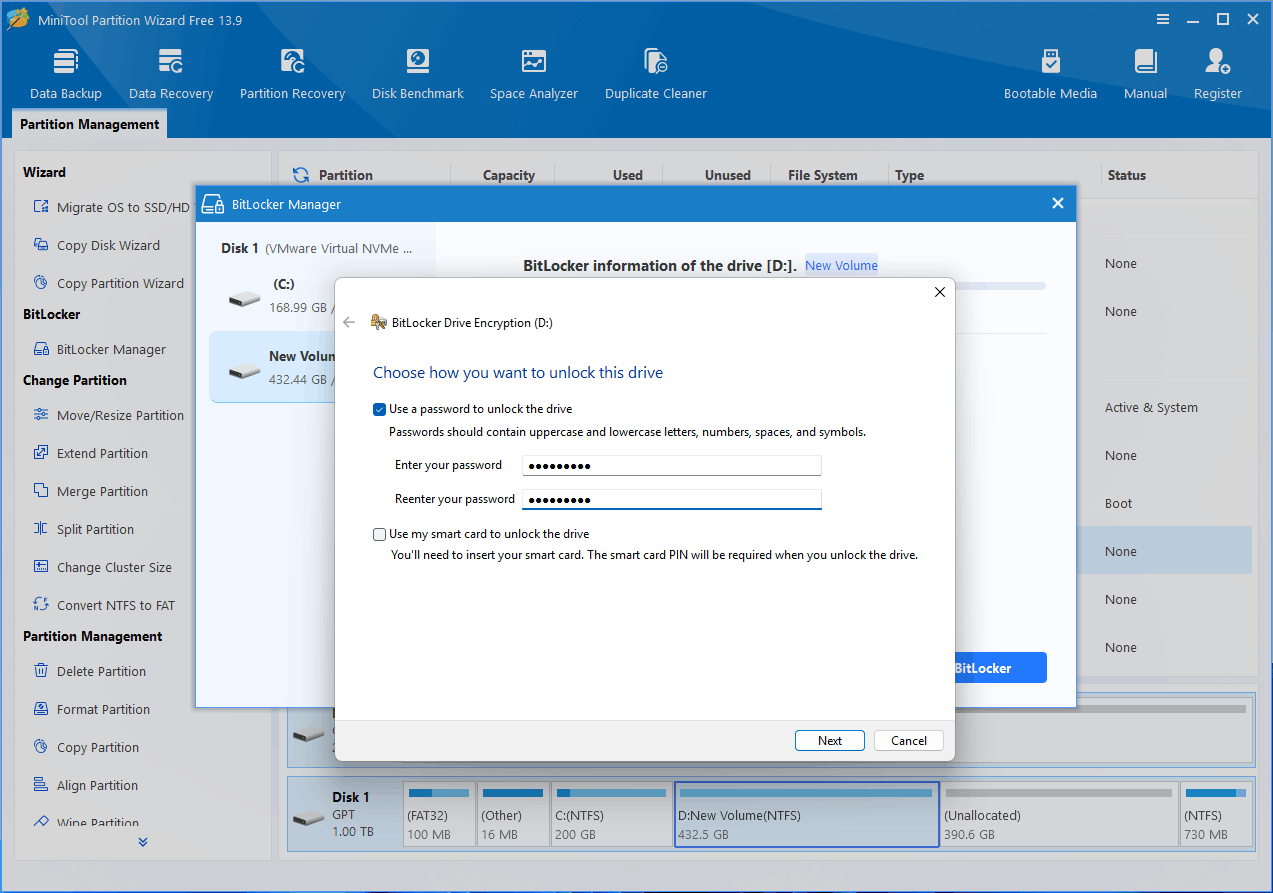
Step 3: When the BitLocker Drive Encryption window pops up, choose how you want to unlock the drive. The password method is recommended. Select it and then set up your password.
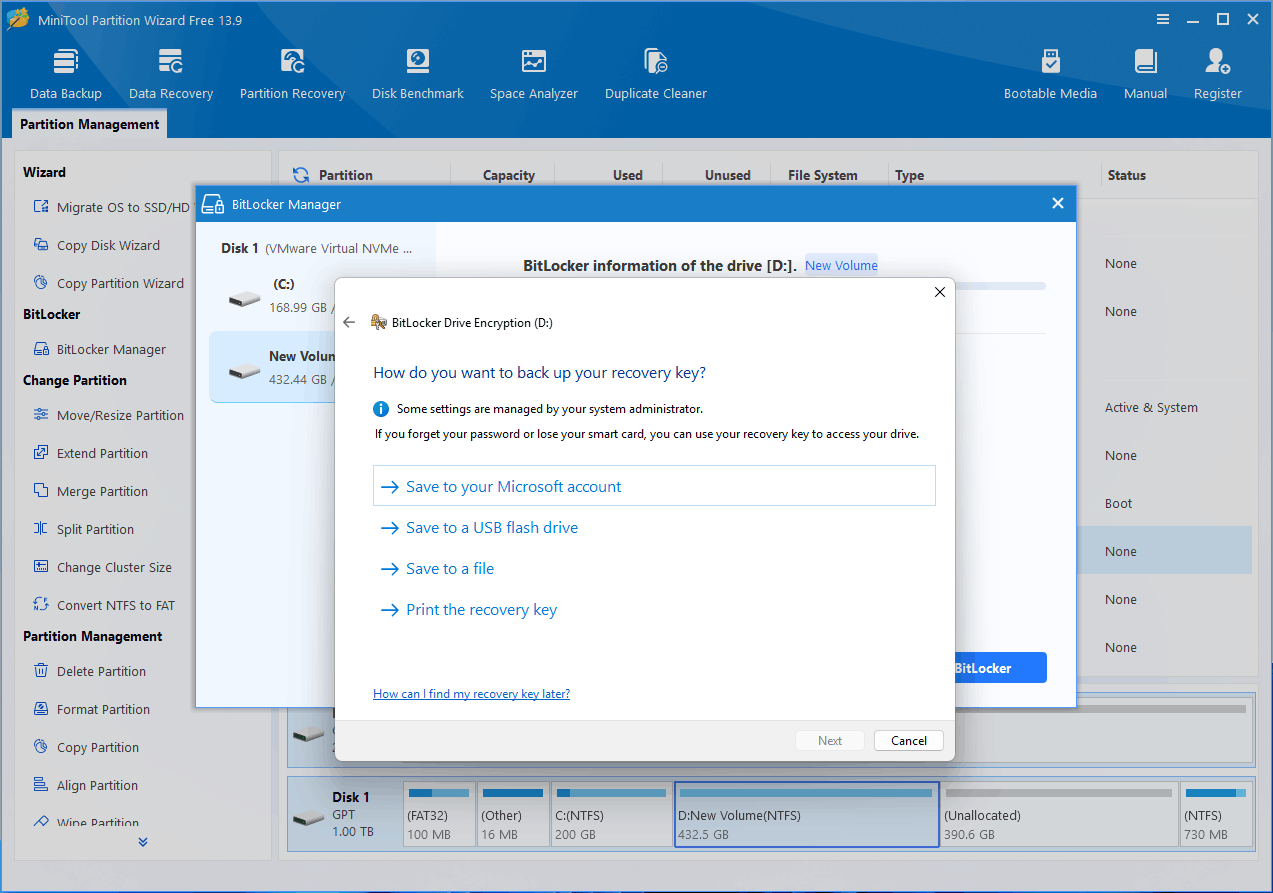
Step 4: Decide how to back up your recovery key. When BitLocker deems the computer to be at risk or detects hardware modifications, the encrypted hard drive will be locked. It can then be unlocked using the recovery key. Therefore, according to your situation, select a proper method to back up your recovery key.
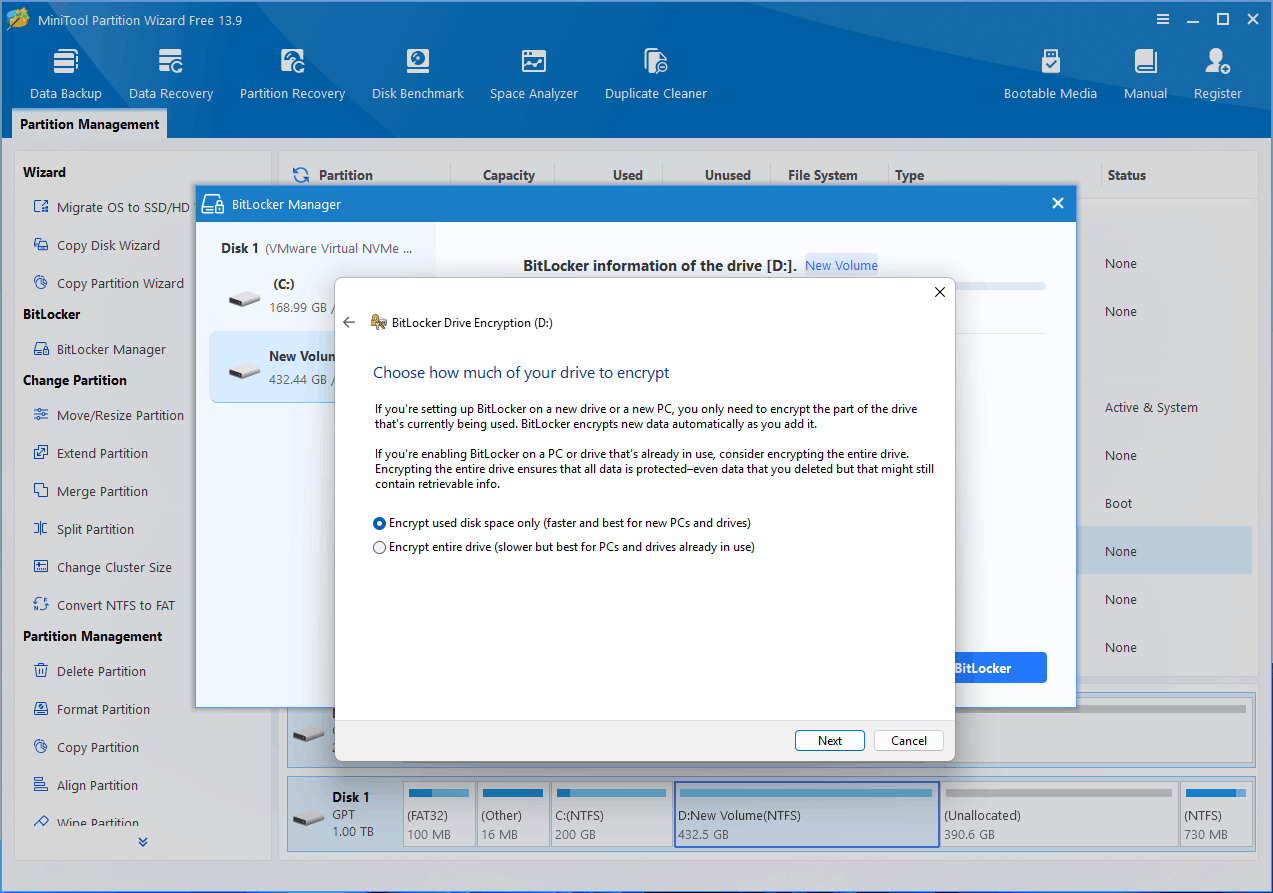
Step 5: Choose how much of your drive to encrypt (Encrypt used disk space only or Encrypt entire drive). Both options are full disk encryption. However, the former will skip the currently unused sectors. As a result, if the drive previously held files that were deleted or unencrypted, forensic tools might recover old fragments from the unencrypted free space regions.
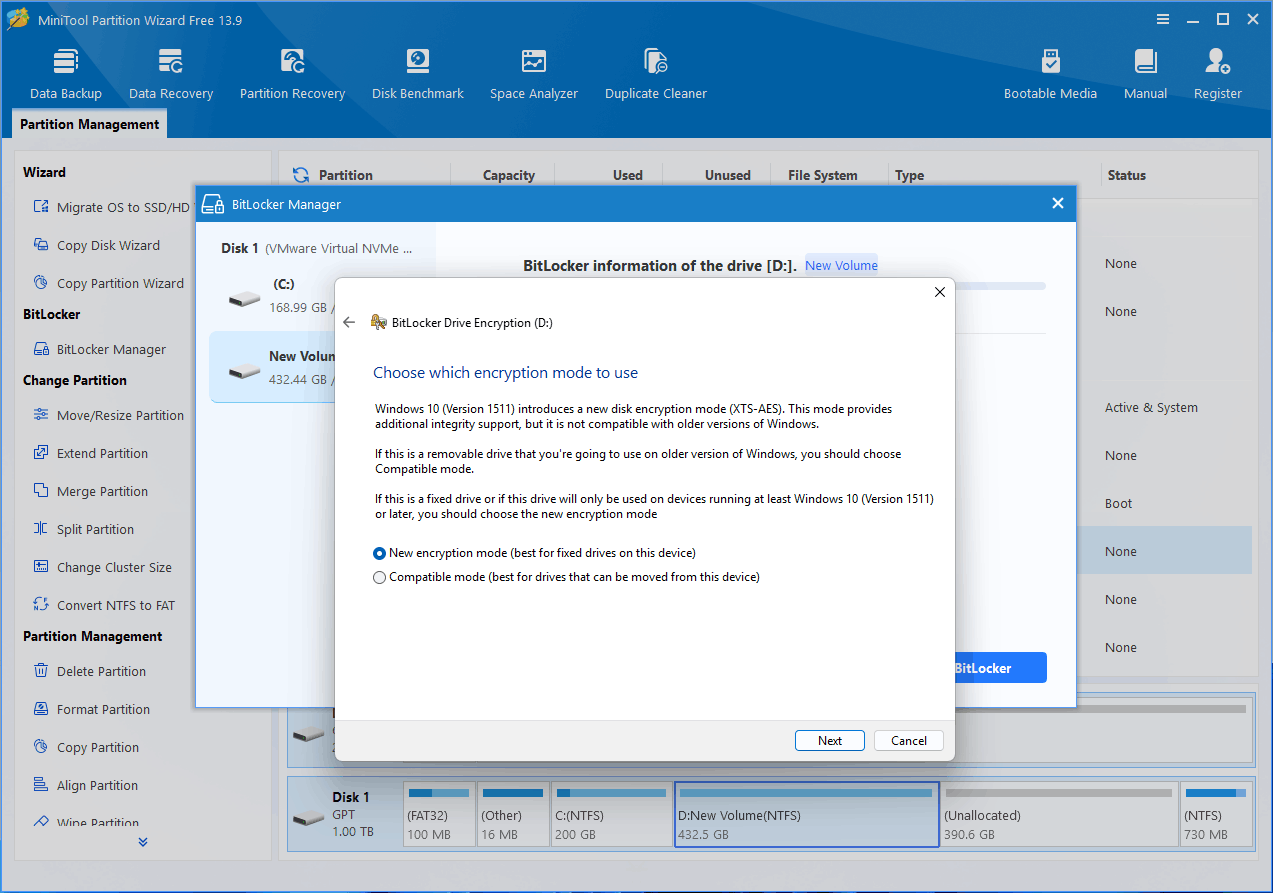
Step 6: Choose which encryption mode to use (New encryption mode or Compatible mode). The new mode employs the modern XTS-AES algorithm (typically 128-bit or 256-bit), supports only Windows 10 (version 1511 or later), and offers enhanced security. The compatible mode employs the traditional AES-CBC algorithm, supporting both legacy and new systems, though it offers slightly lower security.
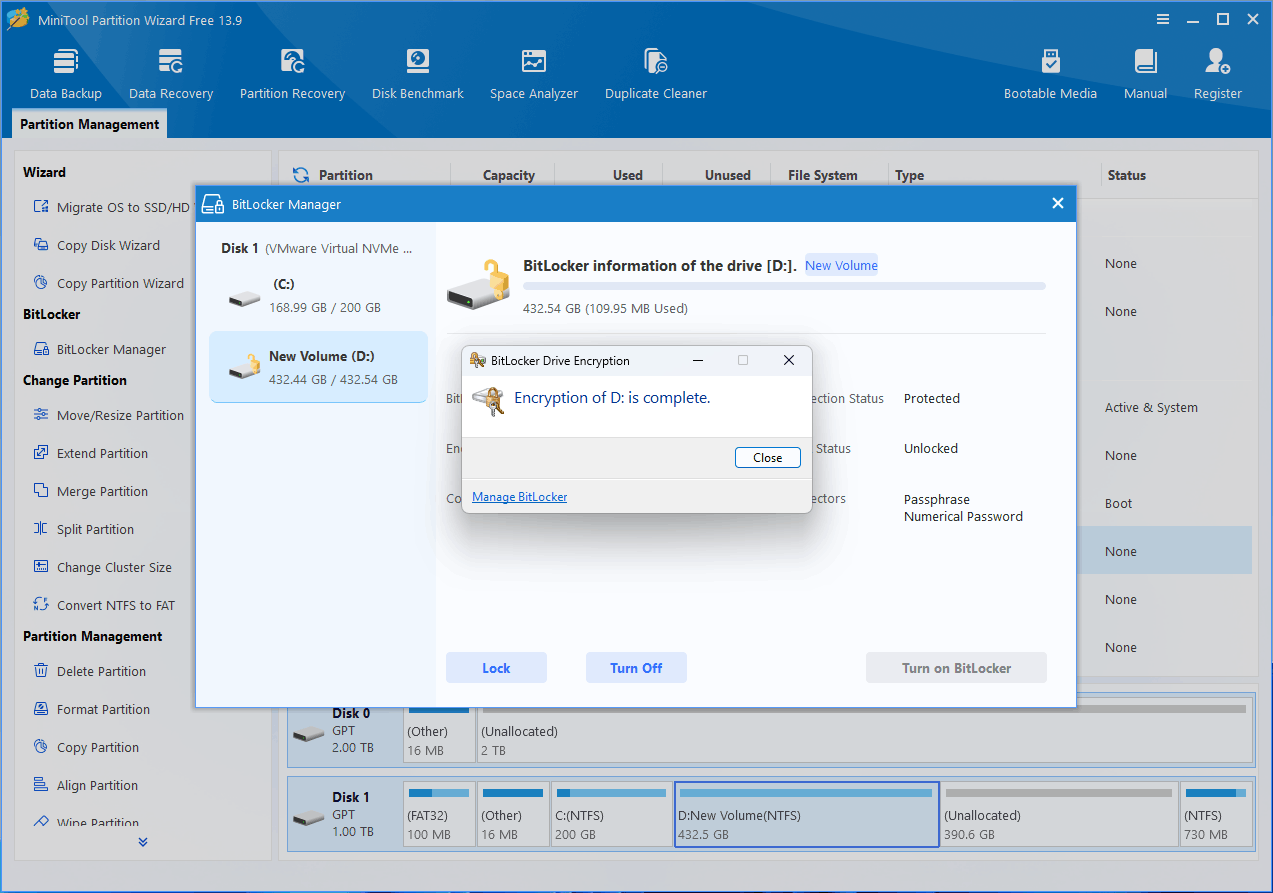
Step 7: Click Start encrypting. Wait for the encryption to complete and click Close.
Common Full Disk Encryption Problems in Windows 11/10
When you use full disk encryption in Windows, you may encounter some issues. This section will explain them offers some solutions.
#1. Device Encryption Is Not Available
If the Device Encryption option is not showing in Settings, the reason may be:
- TPM is not usable: your device doesn’t have a TPM, or the TPM isn’t enabled in the UEFI.
- WinRE is not configured: your device doesn’t have Windows Recovery Environment configured.
- PCR7 binding is not supported: Secure Boot is disabled in the UEFI, or you have peripherals connected to your device during boot (like specialized network interfaces, docking stations, or external graphics cards).
To solve the issue, you can try enabling TPM and Secure Boot in UEFI and disconnecting peripherals.
#2. BitLocker Encryption Is Stuck or Taking Too Long
If the encryption process takes too long, the reasons could be:
- You chose to encrypt the entire drive.
- The drive is too large.
- There is too much data on the drive.
- The drive is located on a slow HDD.
- You are running other programs simultaneously.
- The computer’s performance is poor due to outdated hardware.
- The drive has file system or disk errors.
View this post to solve the issue: BitLocker Taking Forever to Encrypt in Windows 10/11? Fix It Now.
#3. Windows Keeps Asking for the BitLocker Recovery Key
If Windows keeps asking for the BitLocker recovery key during startup, BitLocker may be detecting a change in your computer’s hardware, firmware, boot configuration, or security environment.
To solve it, you can check TPM and Secure Boot in UEFI settings, turn off BitLocker, etc. View this post to get more solutions: How to Fix BitLocker Keeps Asking for Recovery Key on Win11/10.
Full Disk Encryption FAQ
Q1. What does full disk encryption not protect against?
Full disk encryption protects data stored on a locked drive, but it does not protect against threats such as malware, ransomware, phishing attacks, weak passwords, compromised accounts, or unauthorized access to an already unlocked Windows session.
Q2. Does encrypting an SSD reduce its lifespan?
No. Encrypting an SSD with BitLocker or another full disk encryption tool does not normally reduce its lifespan in any meaningful way. The initial encryption process causes some additional writes, but modern SSDs are designed to handle substantial write workloads, so the impact on SSD endurance is generally minimal.
Q3. How long does BitLocker encryption take?
BitLocker encryption can take anywhere from a few minutes to several hours. A modern SSD with a small amount of data may finish quickly, while a large HDD with many files may take several hours or longer.
Q4. What happens if I lose my BitLocker recovery key?
If you lose your BitLocker recovery key, you may be unable to access the encrypted drive if Windows enters BitLocker recovery mode. There is no simple way to bypass BitLocker without the required key. Check your Microsoft account, saved files, USB drives, printed copies, or your organization’s IT administrator for a backup of the recovery key.
Bottom Line
Full disk encryption is one of the most effective ways to protect data stored on a Windows 10/11 computer. For supported devices, Windows users can choose between BitLocker and Device Encryption based on their Windows edition, hardware, and desired level of control.
To enable and manage BitLocker, you can use MiniTool Partition Wizard. If you have problems with this software, seek help by sending an email to [email protected].

Leave a Reply